You do three things yourself: pick a look in Create, copy a prompt, and paste it into Claude. Claude types every command and tells you what it did.
What you need
- The Claude desktop app, with its Code tab. That is where you talk to Claude about your app. You need a Claude plan that includes Claude Code.
- Node.js 20.12 or later and git. Two free programs: Node.js runs the app, and git fetches it and later keeps saved versions of your work. Get them from nodejs.org and git-scm.com, or ask IT. Not sure you have them? Once Claude is open, ask it: “Check that Node.js and git are installed on this computer, and tell me their versions. Do not install anything yet.”
- An empty folder for your app, such as
my-workin your Documents.
Set up the app
Pick a look in Create
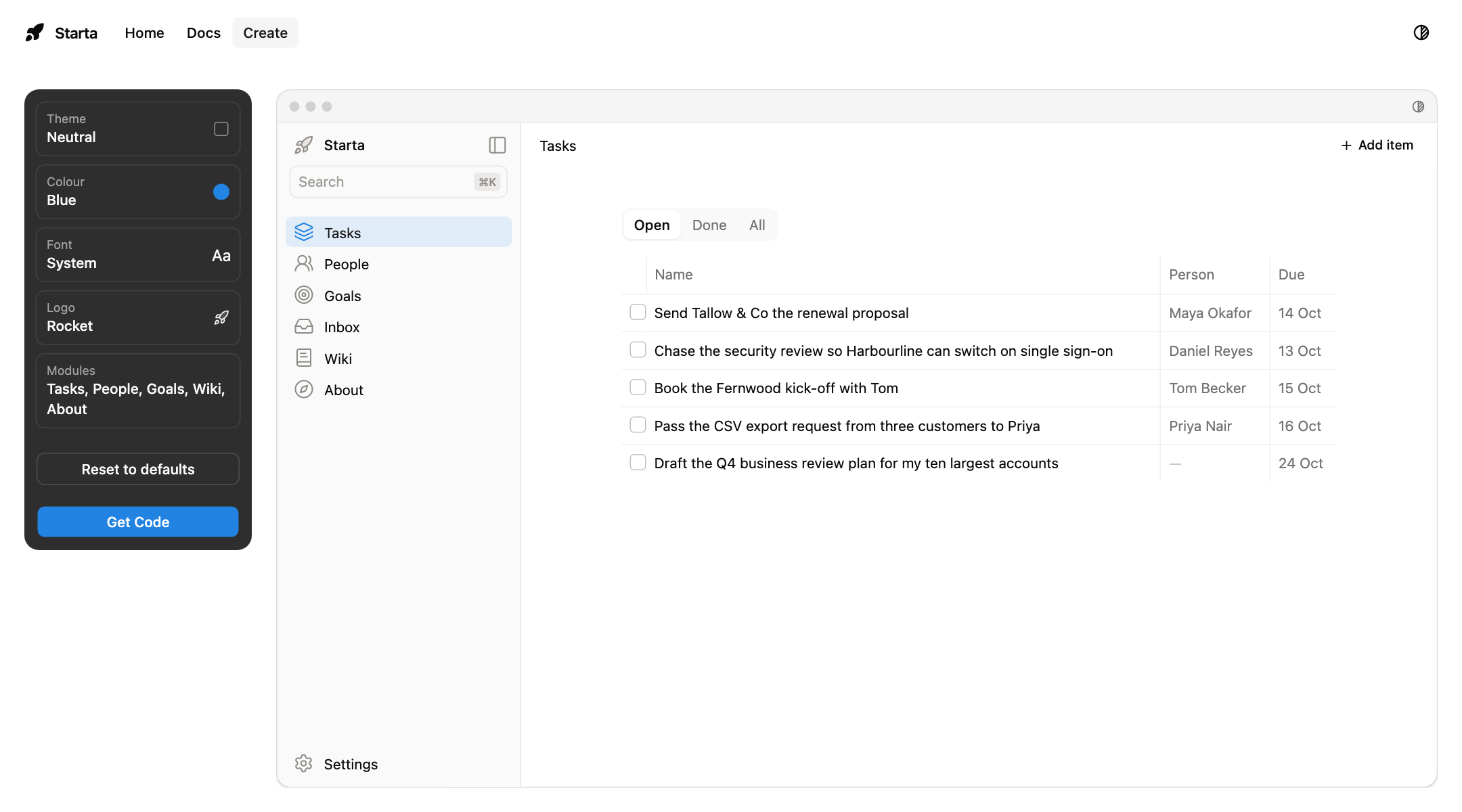
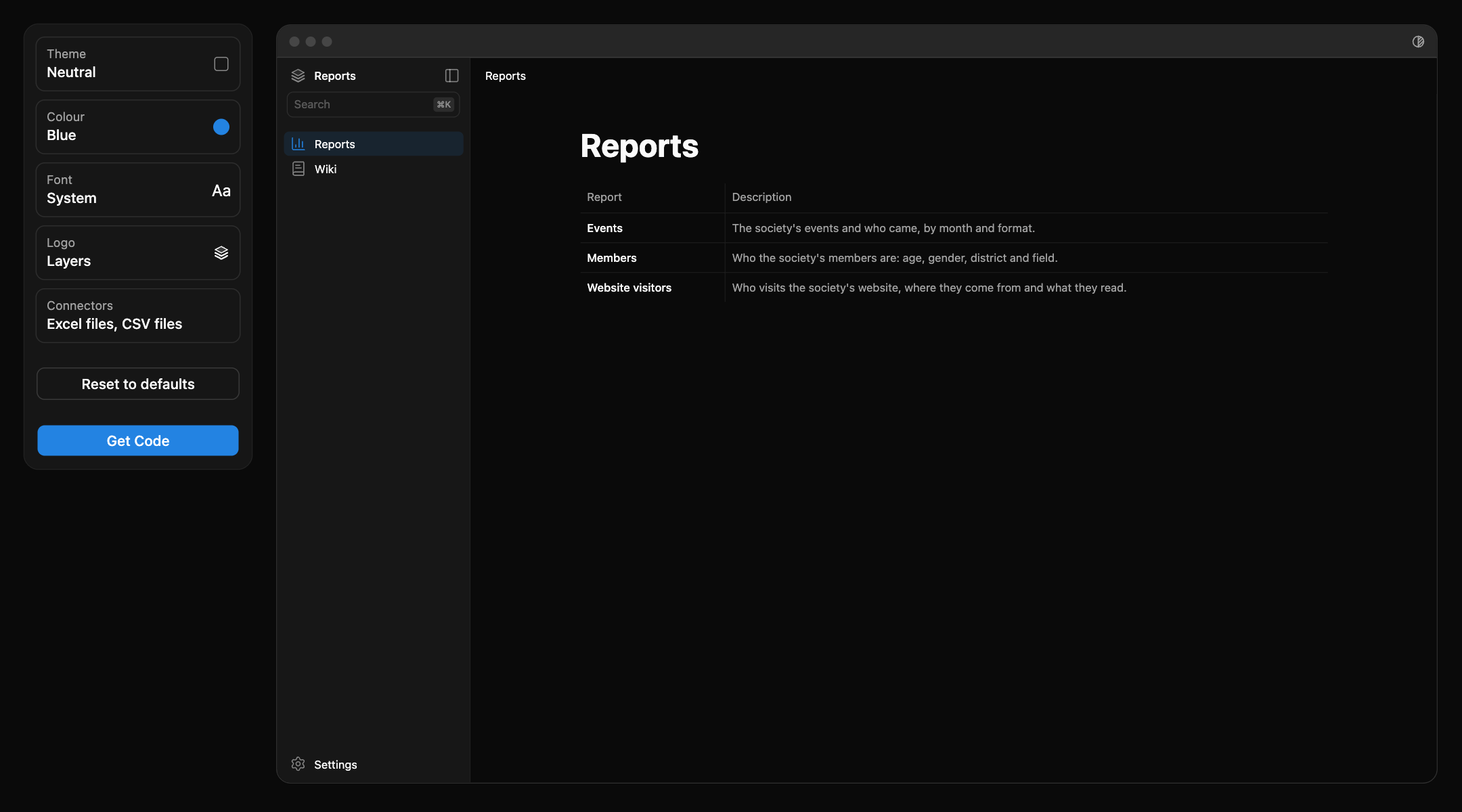
Open Create. The panel on the left has five choices, top to bottom:
- Theme: the style. Neutral (the default), Notion, Airbnb, Stripe or Neo-brutalist.
- Colour: the buttons and the active sidebar row. Blue (the default), Green, Purple, Orange, Pink or Grey.
- Font: System (the default), Inter, Geist, IBM Plex Sans, Lora or Roboto.
- Logo: the small mark at the top of the app’s sidebar, one of 48 shapes. Rocket is the default.
- Modules: what the sidebar holds. Tasks, People, Goals and Wiki are ticked to start with; untick any you don’t want. About is always in.
On the right is a live preview of your app: it changes as you pick. Nothing here is final; you can change every choice later. If you are unsure, keep the defaults.
Copy the prompt
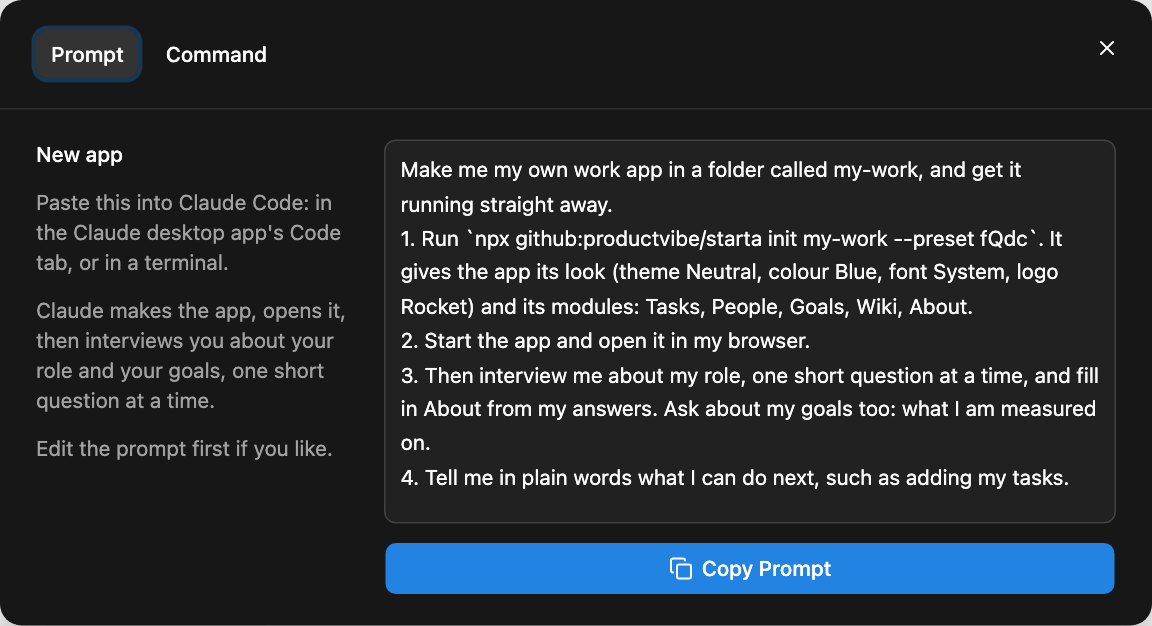
Click Get Code. It opens on the Prompt tab: a short message to Claude, written from your choices. It asks Claude to:
- make the app in a new folder called
my-work, with your look and your modules; - start the app and open it in your browser;
- interview you about your role, one short question at a time, and fill in About; and ask what you are measured on, for Goals;
- tell you what you can do next.
You can edit the text before you copy it, for example to change the folder name. Then click Copy Prompt.
Paste it into Claude
In the Claude desktop app, open the Code tab, choose your empty folder, paste the prompt and send it.
Claude now fetches the app, installs what it needs, starts it, and opens it in your browser at http://localhost:9950. That address is not a website on the internet: localhost means “this computer”, and 9950 is the port, the number the app answers on. The app only runs while Claude keeps it running; if the page stops loading, ask Claude: “Start the app again.”
If Claude asks for permission to run a command, read what it says and allow it. If setup stops, paste the message to Claude and ask it to fix it.
Answer Claude’s questions
Claude asks about your job: your title, your team, what your role is for, who you work with, and what you are measured on. Answer the way you would explain your job to a new colleague; short answers are fine. Claude shows you the draft, and when you say so, writes your About page and your Goals. The page reloads by itself.
Look around
The app opens on Tasks. Every module starts with example data for a made-up customer success manager at Brightlane, so you can see how it works.
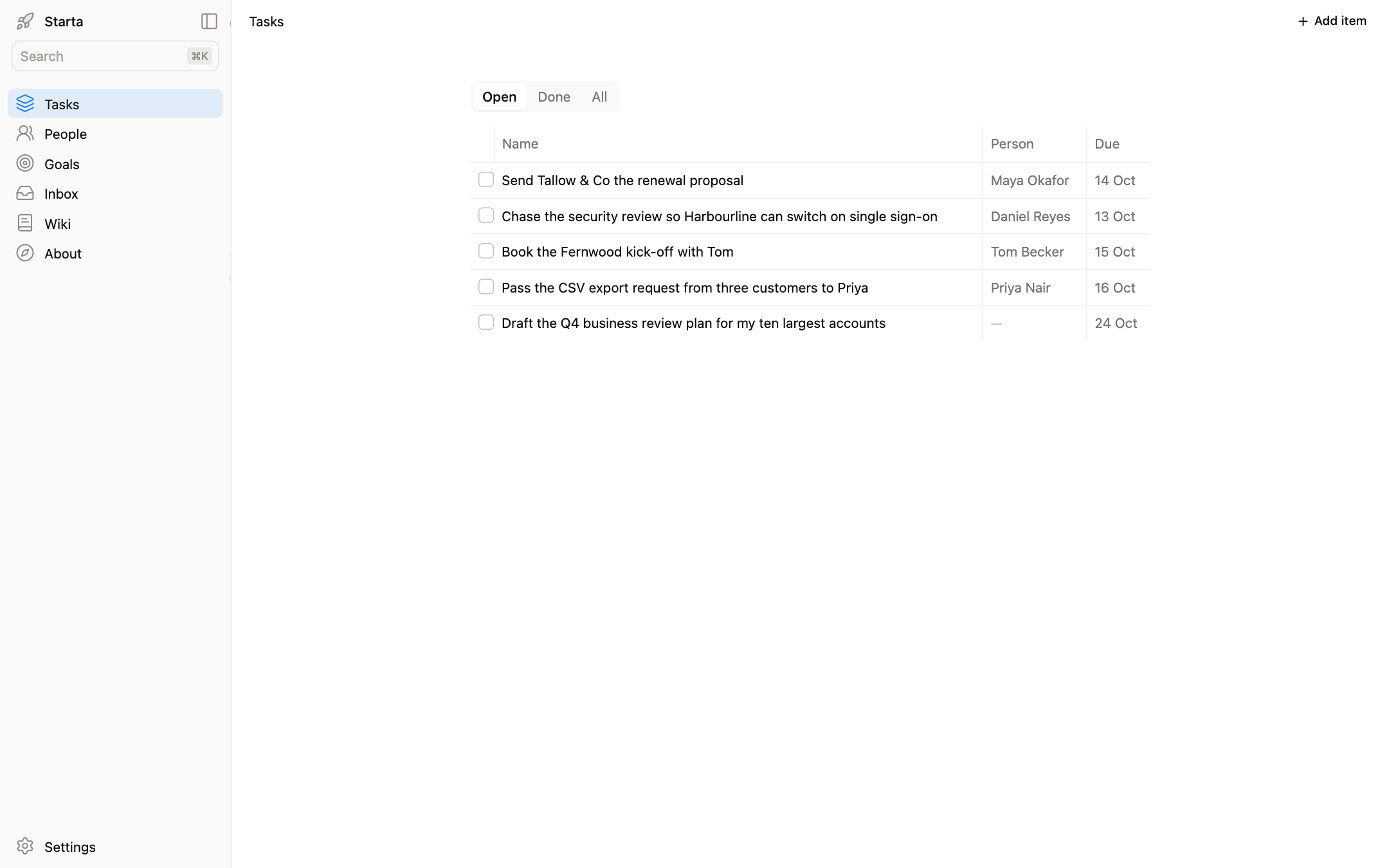
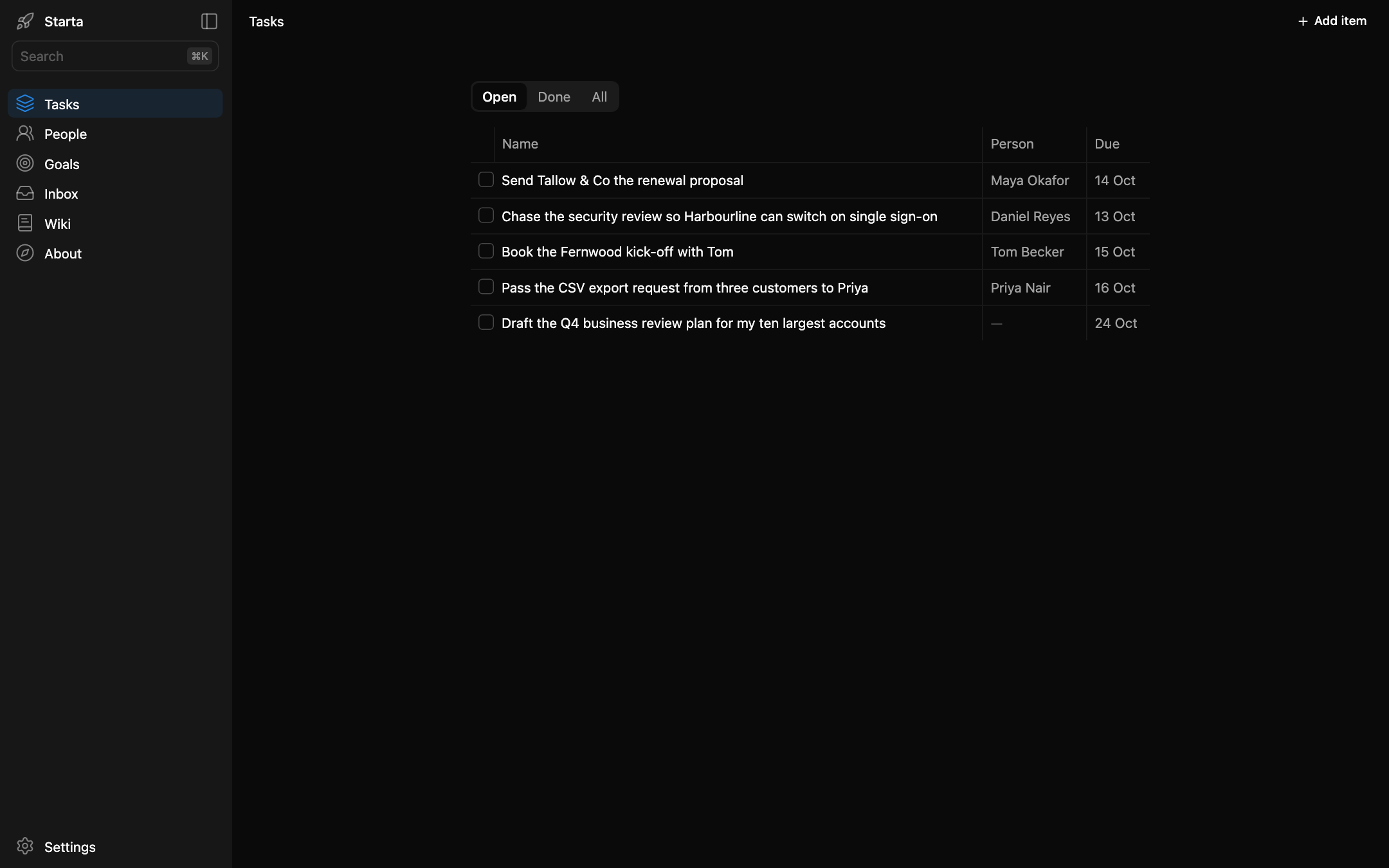
Tick a task, open a row in People, look at your Goals. Then replace the examples with your own:
“Clear the example tasks. Here are mine for this week: …”
“Add the five people I work with most. I will tell you about each one.”
Next
Read what each module holds, and what to ask Claude about it: Modules. The app’s own wiki has a short course, Learn, that takes you from here to a module of your own.
Details for the curious
The command. Get Code’s Command tab shows the command the prompt asks Claude to run, for people who use a terminal:
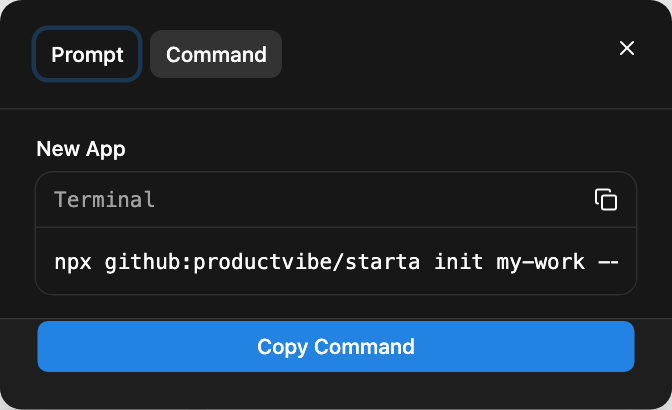
npx github:productvibe/starta init my-work --preset fQnAnpx fetches Starta’s command-line tool (the CLI, a program you run by typing its name) from GitHub and runs it; that is why you need Node.js and git. There is nothing to install first. The CLI copies the kit, Starta’s starting code, into the new folder: the app is yours from then on.
The preset code. Theme, colour, font and logo are packed into one short code, the preset, such as fQnA (the default). It is in Create’s address bar while you pick, so a link to Create opens on the same look. See Themes.
Every command and option is on CLI.